How to grant permissions in KSeF?
Learn how to allow RAVAPI SERVICE to issue invoices on your behalf via the KSeF system.
Prepare for the changes – see what you need to do to ensure everything works smoothly with RAVAPI SERVICE from April 2026.
STEP 1) Log in to the KSeF system using a Trusted Profile or a qualified certificate.
STEP 2) Find the permissions section and grant RAVAPI SERVICE company permission for self-billing on your behalf.
A detailed description of each step with screenshots can be found below.
1) How to log in to the KSeF permissions system
Important! You can log in to the MCU Module in two ways:
Via Trusted Profile (as shown in this guide) – if you run a business as an individual or are a company representative with authorization granted via the ZAW-FA form.
Via qualified certificate (a qualified seal with the company NIP is required) – if you represent a company.
To allow RAVAPI SERVICE company to issue invoices on your behalf, you first need to log in to a dedicated module in the KSeF system (called the MCU Module).
More details about this module can be found here: https://ksef.podatki.gov.pl/media/0iafuqe5/podrecznik-uzytkownika-modulu-certyfikatow-i-uprawnien-mcu.pdf
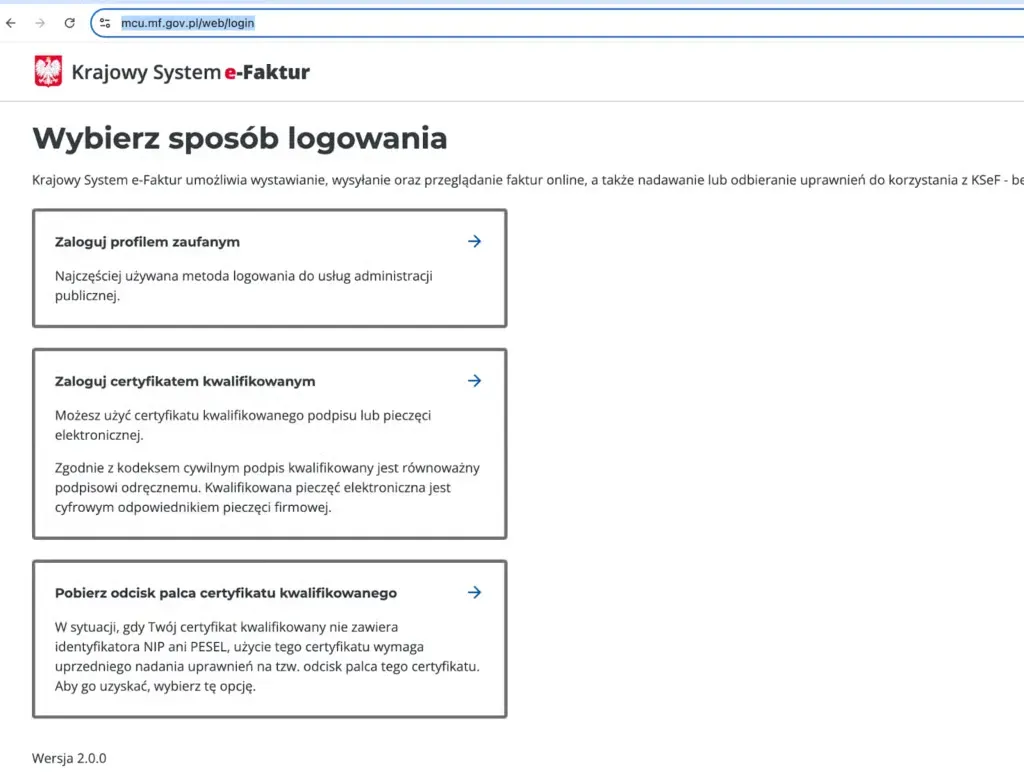
Open https://mcu.mf.gov.pl/web/login and click "Log in with Trusted Profile".
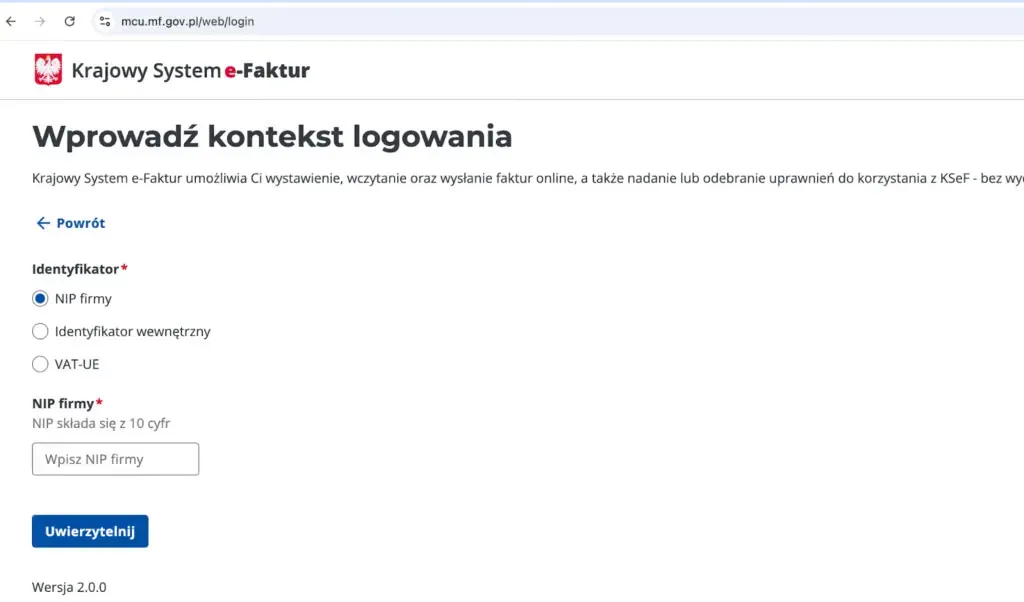
In the "Identifier" field select "Company NIP", enter your company’s NIP number and click "Authenticate".
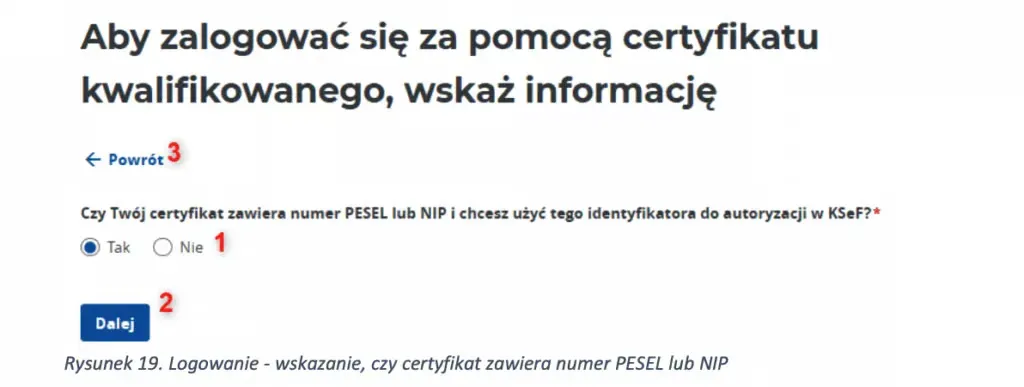
In the next window click "Yes", then "Next". * Some screenshots include numbers from the official KSeF guide available here. You can ignore them.
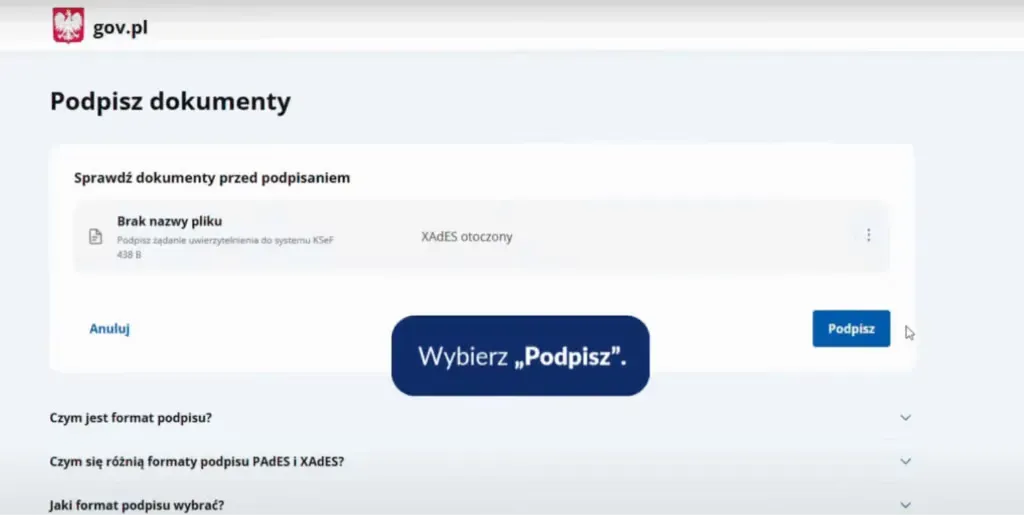
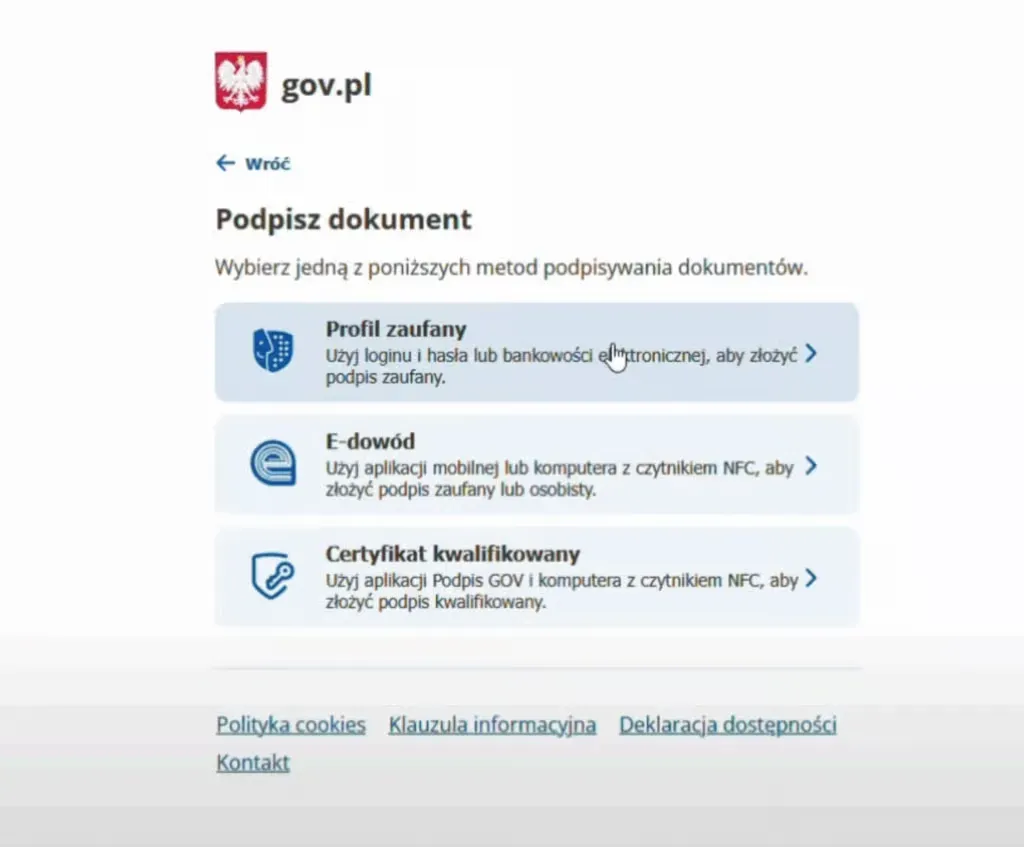
Now click "Sign". You will be redirected – then select "Trusted Profile".
Confirm the selection "Trusted Profile" again.
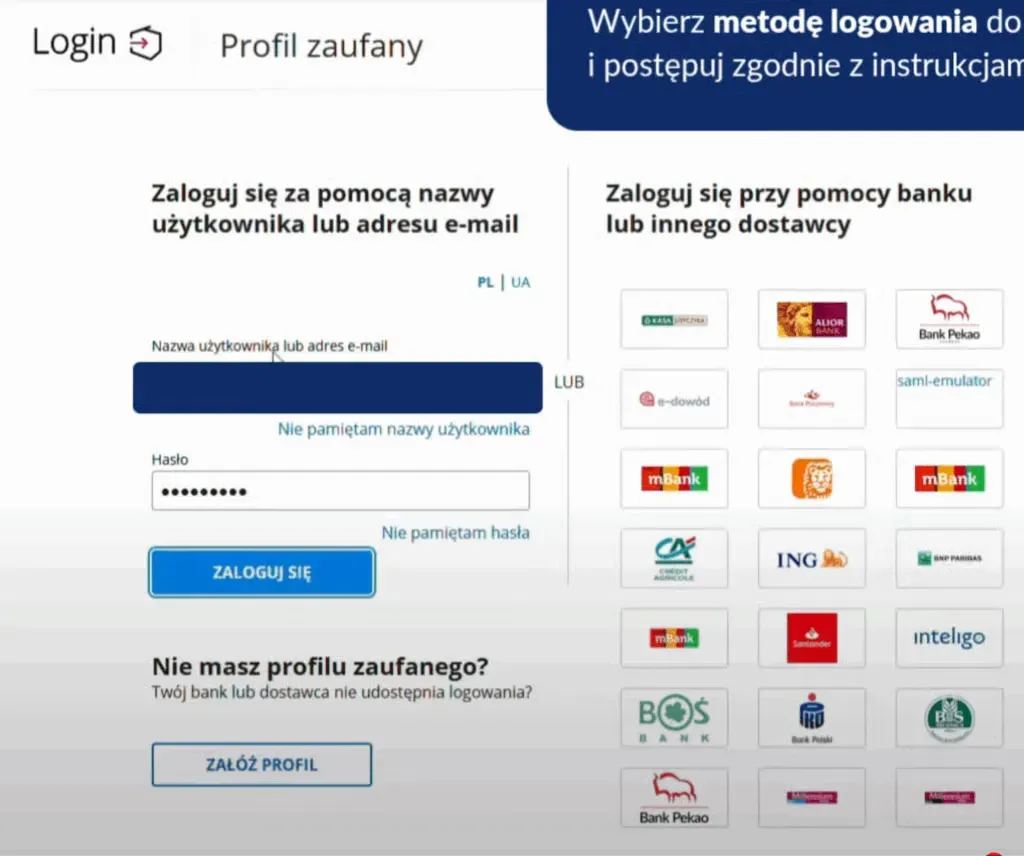
Choose how you want to log in to the Trusted Profile and confirm signing the document.
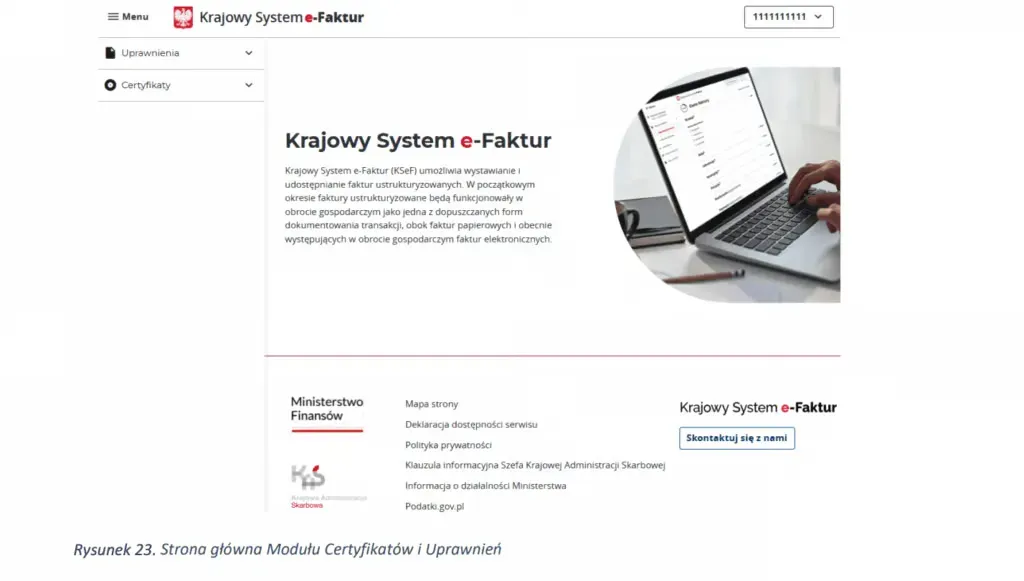
If everything went well, you will now see the main page of the MCU Module.
2) How to allow self-billing (for Service Providers cooperating with RAVAPI SERVICE)
To grant the right to self-billing, you must first log in to the MCU Module – see the instructions in the section "How to log in to the KSeF permissions system".
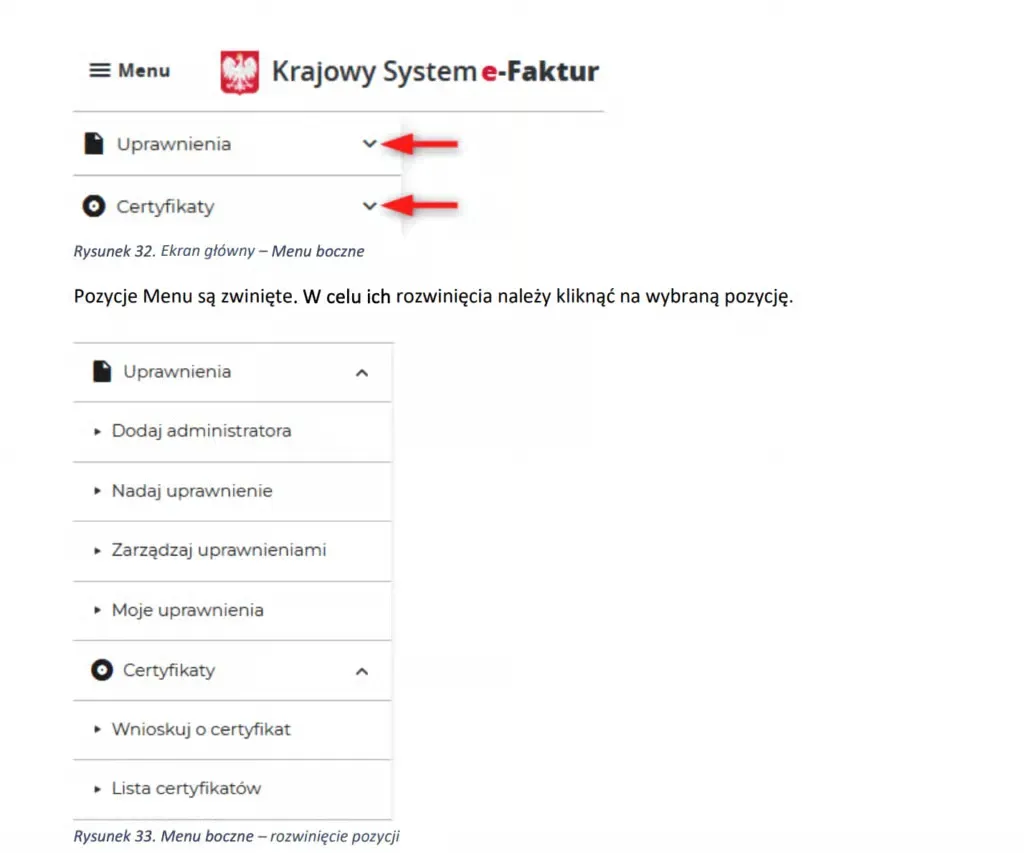
Once on the main screen of the MCU Module, in the "Permissions" section click "Grant permissions".
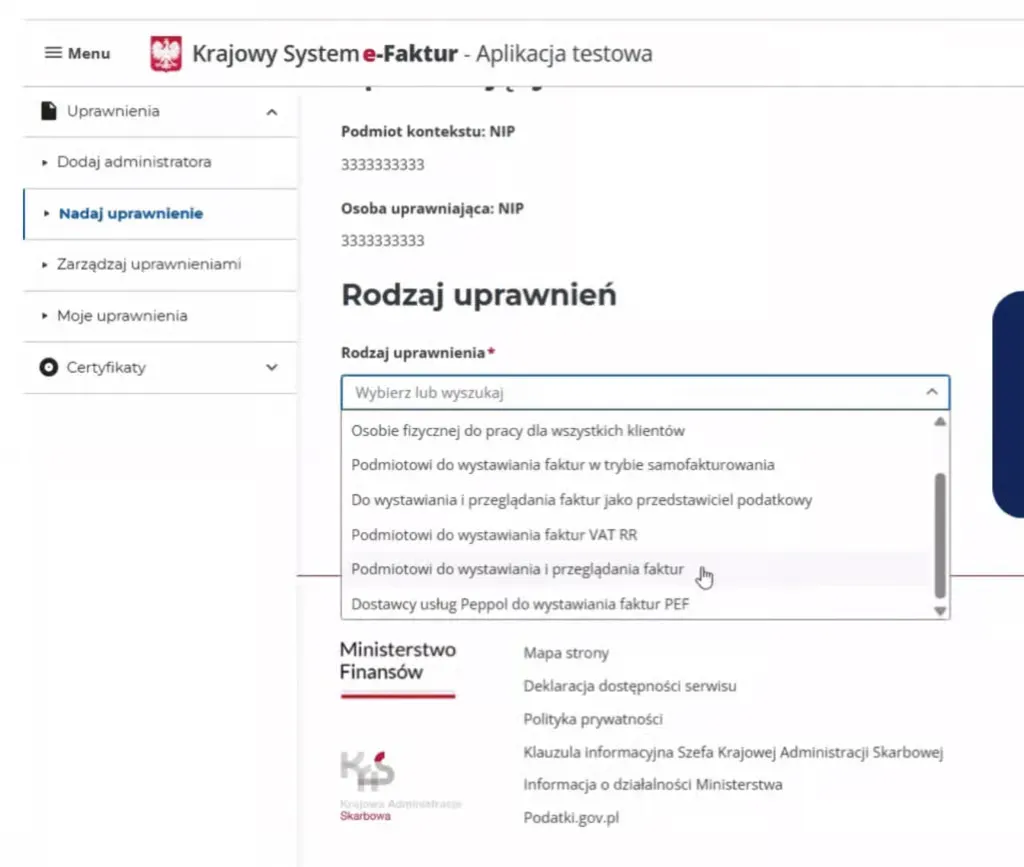
On the next page, in the "Permission type" field select "Entity for issuing invoices in self-billing mode".
Enter the NIP of RAVAPI SERVICE company and its full name. You will find both at the bottom of this page.
To save changes, click "Grant permissions".

The status of your request should now show "in progress".
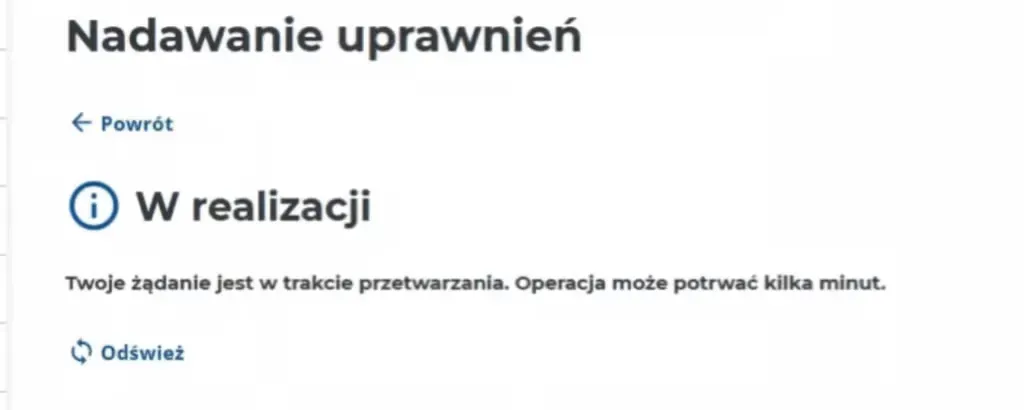
Once the system processes your request, you will see a confirmation message indicating that the permissions were successfully granted.
Tip! An instructional video showing how to grant permissions is available here: https://youtu.be/E4mQ3oRkDk0.
Important information: This document is for informational purposes only and does not constitute legal or tax advice. If you need assistance tailored to your specific situation, contact an experienced advisor.